- How to Cancel Spokeo Subscription on Desktop or Laptop
- 1. Log in to your Spokeo account
- 2. Go to Account or Profile Settings
- 3. Open Manage Account or Billing
- 4. Cancel subscription and confirm
- How to Cancel Spokeo Subscription on Android
- 1. Open Play Store
- 2. Tap your profile icon
- 3. Open Payments & subscriptions → Subscriptions
- 4. Cancel Spokeo
- How to Cancel Spokeo Subscription on iPhone (iOS)
- 1. Open Settings
- 2. Tap your name (Apple ID)
- 3. Tap Subscriptions
- 4. Cancel Spokeo
- Cancel Spokeo by Phone or Chat
- Phone Support
- Live Chat
- Call or Chat Script
- What is Spokeo Cancellation Policy
- Before You Cancel Spokeo Subscription: What You Should Know
- Refunds are limited
- Export important information first
- Trial timing matters
- Privacy and data deletion
- Quick checklist before you cancel
- Having Trouble Cancelling Your Spokeo Subscription?
- Check the payment source
- Use desktop mode or another browser
- Try incognito/private browsing
- Call or escalate support
- When nothing else works
- Quick Message to Support
- Subscription Plans and Pricing
How to Cancel Spokeo Subscription
Spokeo is a people-search and background-check website that collects public information from multiple sources. Many users sign up through the popular $0.95 trial, which often converts into a monthly subscription ranging from about $24.95 to $29.95. Depending on your plan, cancelling could save you up to $360 per year.
If you want to cancel your Spokeo subscription because of recurring charges or difficulty managing your account, this guide explains the exact steps to stop billing and get cancellation confirmation.
This guide covers:
- Desktop cancellation steps
- Android and iPhone cancellation
- Phone and live chat support
- Refund policy details
- Troubleshooting tips
- Subscription pricing
Better Business Bureau and Trustpilot both contain customer complaints related to billing and cancellation experiences. Always verify the latest information directly from those platforms before escalating a dispute.
How to Cancel Spokeo Subscription on Desktop or Laptop
Using a desktop or laptop browser is usually the easiest and most reliable way to cancel Spokeo subscription. If the mobile version gives you problems, switch to desktop mode in your browser.
1. Log in to your Spokeo account
Go to the Spokeo website and sign in using the email linked to your subscription.
If you forgot your password, use the “Forgot password” option to reset it before continuing.
Tip: If the login page keeps refreshing or redirecting, clear your browser cookies or open the site in an incognito/private window.
2. Go to Account or Profile Settings
Click your profile icon in the top-right corner and select:
- Account
- My Account
- Profile
- Settings
The exact wording may vary depending on the version of the site.
If you cannot locate the settings page, try navigating directly to:
/account/settings
3. Open Manage Account or Billing
Inside the account section, look for:
- Billing
- Subscription
- Manage Account
- Membership
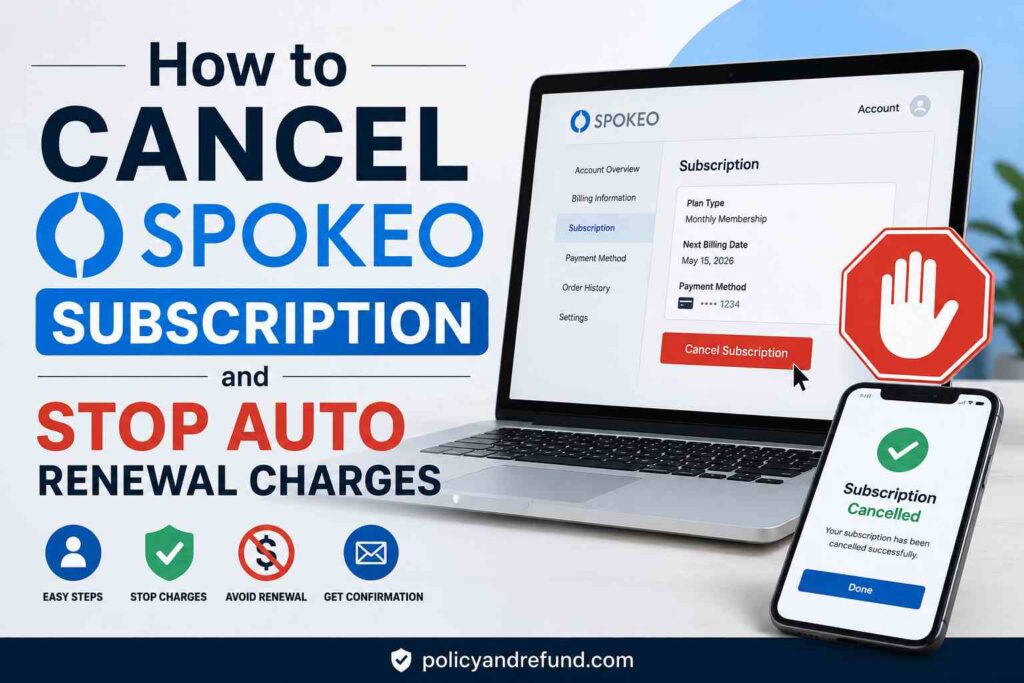
This page usually displays:
- Your current plan
- Next billing date
- Payment method
- Renewal status
Check whether your payments are processed through:
- Credit/debit card
- PayPal
- Google Play
- Apple
If a third-party platform handles billing, you may also need to cancel there.
4. Cancel subscription and confirm
Click the Cancel Subscription button and follow the prompts until you reach the final confirmation screen.
Spokeo may display retention offers or discount pages before completing cancellation. Continue through all prompts until the cancellation is confirmed.
Before leaving the page:
- Take screenshots
- Save confirmation emails
- Record the cancellation date
- Note any confirmation number
Keeping proof can help if you later dispute charges or request a refund.
How to Cancel Spokeo Subscription on Android
If you subscribed through the Spokeo Android app, you must cancel through Google Play. Deleting the app alone will not stop recurring billing.
1. Open Play Store
Launch the Google Play Store app on the Android device connected to the subscription.
Make sure you are signed into the correct Google account.
2. Tap your profile icon
Tap your profile picture in the top-right corner and verify the email address linked to the subscription.
3. Open Payments & subscriptions → Subscriptions
Tap:
Payments & subscriptions → Subscriptions
You will see all active subscriptions connected to that Google account.
4. Cancel Spokeo
Select Spokeo from the list and tap:
Cancel subscription
Follow the on-screen prompts to confirm cancellation.
Google may also show:
- Your next billing date
- Refund eligibility
- Remaining access period
If Spokeo does not appear in the list, you may have subscribed:
- Through the website
- Using another Google account
Try checking other Google accounts on your device.
If you still cannot locate the subscription, contact Google Play or Spokeo support for assistance.
How to Cancel Spokeo Subscription on iPhone (iOS)
These steps only apply if you subscribed using your Apple ID through iPhone or iPad billing.
Most users subscribe directly through the Spokeo website instead.
1. Open Settings
Open the Settings app on your iPhone.
2. Tap your name (Apple ID)
Tap your Apple ID banner at the top of the screen.
Confirm you are using the correct Apple account.
3. Tap Subscriptions
Select Subscriptions and wait for the list to load.
This section displays all subscriptions billed through Apple.
4. Cancel Spokeo
Tap Spokeo from the subscription list, then select:
Cancel Subscription
Apple may display:
- Your next billing date
- Trial expiration date
- Refund eligibility
If Spokeo is not listed, you were likely billed through the Spokeo website or another Apple ID.
If you believe you were charged incorrectly after a free trial, you can request a refund through Apple’s refund portal.
Cancel Spokeo by Phone or Chat
If the website cancellation option does not work, you can contact Spokeo support directly by phone or live chat.
Always keep records of:
- Agent names
- Dates and times
- Confirmation numbers
- Chat transcripts
Phone Support
Call:
1 (888) 906-0849
Business hours may change, so verify current support hours on the Spokeo website before calling.
Have these details ready:
- Account email
- Last four digits of your card
- Billing date
Live Chat
Visit the Spokeo contact page and open the live chat window.
If the chatbot appears first, type:
- “Agent”
- “Representative”
- “Human support”
Request written confirmation before ending the conversation.
Call or Chat Script
Hello, I’d like to cancel my Spokeo subscription for the account linked to [your email]. Please process the cancellation and send written confirmation or a confirmation number. My last four card digits are [1234].
If support refuses to help or the site remains inaccessible, contact your payment provider to block future recurring charges.
What is Spokeo Cancellation Policy
Spokeo allows cancellations at any time, but cancelling normally stops future billing only. Your membership generally remains active until the end of the current billing cycle.
Example:
- If you are billed on March 1
- And cancel on March 2
You will usually keep access until March 31 without receiving a partial refund.
Refunds are limited and are generally only issued for:
- Technical billing errors
- Duplicate charges
- Unauthorized payments
- Certain payment processor disputes
The common $0.95 trial typically converts into a full monthly membership after seven days if not cancelled in time.
To avoid unexpected charges:
- Cancel at least 24 hours before the trial ends
- Save screenshots of your cancellation attempt
- Keep all confirmation emails
If support denies your refund request, you may still dispute the charge through:
- Your bank
- PayPal
- Apple
- Google Play
- Your credit card provider
Before You Cancel Spokeo Subscription: What You Should Know
Refunds are limited
Spokeo rarely provides prorated refunds for unused time.
If you believe you were billed incorrectly:
- Request a refund immediately
- Save screenshots and emails
- Keep transaction records
Export important information first
Cancelling billing does not always delete your account or search history.
Before cancelling:
- Save reports you may need later
- Record your account email
- Note the payment method used
Trial timing matters
Many users join through a 7-day $0.95 trial offer.
To avoid automatic renewal:
- Cancel at least 24 hours before the trial expires
- Verify the exact expiration date inside your account
Privacy and data deletion
If you want your account information removed completely, submit a separate data deletion request through Spokeo’s privacy settings.
You may also want to:
- Log out after cancelling
- Clear browser cookies
- Remove saved login information
Quick checklist before you cancel
Before cancelling, make sure you:
- Export reports or searches
- Record your billing date
- Screenshot your subscription details
- Request written cancellation confirmation
- Submit a data deletion request if needed
Having Trouble Cancelling Your Spokeo Subscription?
If standard cancellation methods fail, try the solutions below.
Check the payment source
Verify how you originally subscribed.
If you used:
- PayPal → Cancel recurring payments inside PayPal settings
- Google Play → Cancel through Android subscriptions
- Apple → Cancel through Apple subscriptions
Use desktop mode or another browser
Some mobile browsers hide the cancellation button.
Try:
- Desktop mode
- Another browser
- Incognito/private browsing
- Clearing cookies and cache
Try incognito/private browsing
Saved sessions or corrupted cookies can sometimes prevent account pages from loading correctly.
Open a private browser window and log in again.
Call or escalate support
If cancellation still fails:
- Contact phone support
- Request a supervisor
- Ask for written confirmation
Document every interaction carefully.
When nothing else works
If you cannot access the account or Spokeo refuses to stop billing:
- Contact your bank
- Request a stop payment
- Dispute future recurring charges
Save all supporting evidence, including:
- Screenshots
- Emails
- Chat logs
- Billing statements
Quick Message to Support
Please cancel my Spokeo subscription for [your email]. I need written confirmation of cancellation and a confirmation number. My last four card digits are [1234].
Subscription Plans and Pricing
| Plan Type | Cost | Details |
|---|---|---|
| 7-Day Trial | $0.95 | Converts to a monthly subscription if not cancelled |
| Monthly Membership | About $24.95–$29.95 | Standard recurring monthly plan |
| 3-Month Membership | About $14.95/month | Usually billed as one payment of about $44.85 |
| Individual Report | $0.95–$1.95 | One-time fee for a single report |
Prices and promotions can change frequently.
To verify your current plan:
- Log into your account
- Open Account or Billing settings
- Check:
- Plan name
- Renewal date
- Payment method
- Billing amount
If your subscription is billed through PayPal, Apple, or Google Play, review those payment settings separately.